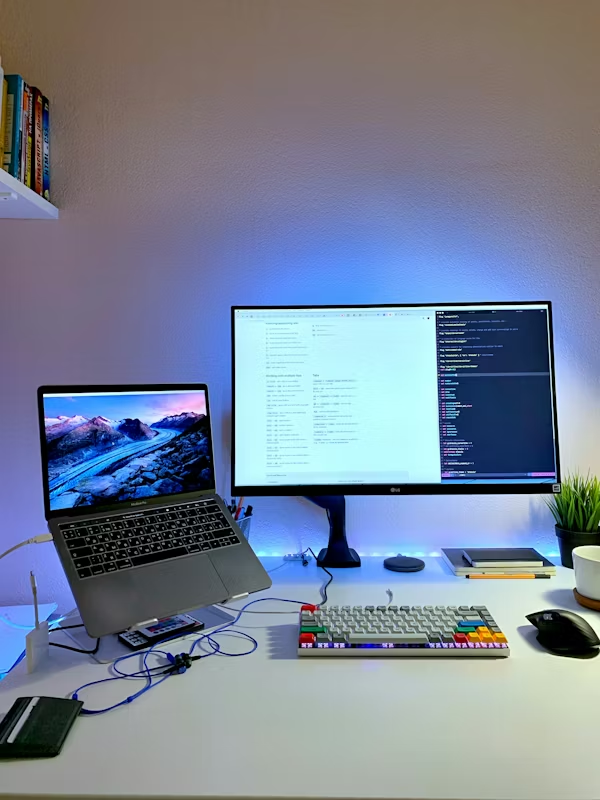
iOS setup begins with installing Xcode, Apple’s integrated development environment (IDE), which includes everything needed for iOS development: code editor, Interface Builder, iOS simulators, and debugging tools. Proper environment configuration is essential for productive iOS development.
From Apple developer account registration to configuring simulators for multiple devices, understanding the iOS setup process ensures smooth development workflows. Whether you’re building your first app or setting up a professional development environment, following best practices from the start saves time and prevents common configuration issues.
Get Xcode & tools
Configure IDE
Set up environment
Validate setup

Follow these steps to configure your complete iOS development environment
Download and install Apple's IDE with iOS SDK, simulators, and development tools.
Configure iPhone/iPad simulators for testing across different devices and iOS versions.
Register and configure certificates, provisioning profiles, and app identifiers.
Set up SDKs, CocoaPods, Git, and essential development tools and dependencies.
Complete iOS development environment setup in four essential stages
Download and install Xcode from Mac App Store
Set up developer tools and preferences
Validate environment with sample project
Prepare for app deployment and testing
Follow these guidelines to maintain a clean, efficient, and reliable development environment
Regularly update Xcode to ensure compatibility with the latest iOS versions, Swift features, and bug fixes. Enable automatic updates or check for updates weekly.
Set up simulators for different iOS versions and device types (iPhone, iPad) to test across various screen sizes and system configurations.
Initialize Git repositories for all projects from day one. Configure .gitignore for Xcode, use meaningful commit messages, and push to remote repositories.
After setup, create and build a sample project to verify Xcode installation, simulator functionality, and build tools are working correctly.
Xcode requires significant disk space (~15-20GB). Regularly clean derived data, old simulators, and archived builds to free up storage.
Protect signing certificates and provisioning profiles. Use Keychain Access for secure storage, back up certificates, and never share private keys.
Everything you need to know, categorized for easy navigation.
Deep dive into MVC, MVVM, and Clean Architecture patterns for scalability.
Learn Swift fundamentals, SwiftUI, and modern syntax to build powerful iOS apps.
Mastering XCTest, Instruments, and interpreting crash logs for stability.
Fine-tuning memory management, profiling, and asynchronous tasks.
Handling certificates, provisioning, TestFlight, and final publishing.
Success stories from developers configuring iOS development environments




Get answers to common questions about iOS development setup
Install Xcode from the Mac App Store: Open App Store, search for 'Xcode', click 'Get' or the download button. The download is approximately 12GB and installation takes 30-60 minutes depending on your internet speed. After installation, launch Xcode and accept the license agreement. Xcode will then install additional components automatically. Alternatively, download Xcode from Apple's Developer website if you need a specific version.
Yes, you need a Mac to develop iOS apps officially. Xcode, Apple's required IDE for iOS development, only runs on macOS. You need a Mac running the latest or recent version of macOS. While there are cloud-based solutions and virtual machines, they have limitations and performance issues. For professional iOS development, a MacBook Pro, Mac Mini, or iMac is recommended. The minimum requirement is typically a Mac that can run the latest macOS version.
Configure simulators in Xcode by opening Window > Devices and Simulators, then select the 'Simulators' tab. Click the '+' button to add new simulators. Choose the device type (iPhone, iPad) and iOS version. You can create multiple simulators for different device/OS combinations. Manage simulators by right-clicking to rename, delete, or erase content. To run your app on a simulator, select it from the scheme menu in Xcode's toolbar and press ⌘+R.
Xcode system requirements vary by version, but generally require: macOS 13.0 or later, at least 8GB RAM (16GB recommended), 20GB+ free disk space for Xcode and simulators, and a Mac from 2017 or newer. Check Apple's official documentation for the specific Xcode version you plan to use. Note that newer iOS SDK versions require more recent macOS and Xcode versions. For optimal performance, especially when running simulators, 16GB+ RAM is highly recommended.
Initial iOS development setup typically takes 1-2 hours total: Xcode download and installation (30-60 minutes depending on internet speed), accepting licenses and installing components (10-15 minutes), configuring preferences and simulators (15-30 minutes), and creating/testing a sample project (15-30 minutes). If you need to register for an Apple Developer account and configure certificates, add another 1-2 hours. The process is largely automated but requires user interaction at several steps.
No, you don't need a paid Apple Developer account ($99/year) to start learning iOS development. You can use Xcode, write code, and test on simulators with just a free Apple ID. However, you'll need a paid developer account to: test apps on physical devices, access beta software and advanced features, submit apps to the App Store, and use certain capabilities like Push Notifications and iCloud. Many developers start with free accounts and upgrade when ready to deploy.
CocoaPods is a dependency manager for iOS projects that simplifies adding third-party libraries. While not required, it's widely used in the iOS community. Install it via Terminal: 'sudo gem install cocoapods'. You need it if your project uses external libraries distributed through CocoaPods. Alternatives include Swift Package Manager (built into Xcode, Apple's official solution) and Carthage. Many modern projects are migrating to Swift Package Manager, but CocoaPods still has the largest library ecosystem.
Common Xcode installation issues and solutions:
We’re a team of passionate tech writers helping developers, marketers, and privacy-conscious users navigate the digital world. From mobile development to AI and SEO, our goal is to deliver clear, actionable insights.
© 2026, Android Studio Hub. All Rights Reserved.