Android Studio Hub
Streamlined Release Workflows

Release With Confidence

Unlock seamless Android app releases with streamlined workflows, ensuring your app reaches users efficiently and securely.
asset 23dfe8a6 e1760233957208
Services

Our Key

Unlock seamless Android app releases with streamlined workflows, ensuring your app reaches users efficiently and securely.

How It Works

Overview & Workflow Diagram

A complete deployment workflow from development to production monitoring

1. Formats

2. Sign

3. Optimize

4. Deploy

5. Monitor

APK

APK offers broad compatibility, while AAB provides optimized size and delivery for modern Android devices.

Formats

Modern format, optimized size, efficient delivery.

AAB

Legacy format, broad compatibility, larger size.

step by step guide

Compile your Android app using Gradle build system.

Configure build variants, flavors, and generate APK or AAB files. Optimize build performance with parallel execution and incremental builds.

Digitally sign your app with a keystroke.

Create or use existing keystores to sign your release builds. Manage signing configurations for different build types and ensure app authenticity.

Shrink Code with proGuard/R8.

Enable code shrinking, obfuscation, and optimization. Reduce APK size and improve security with R8 compiler and resource shrinking.

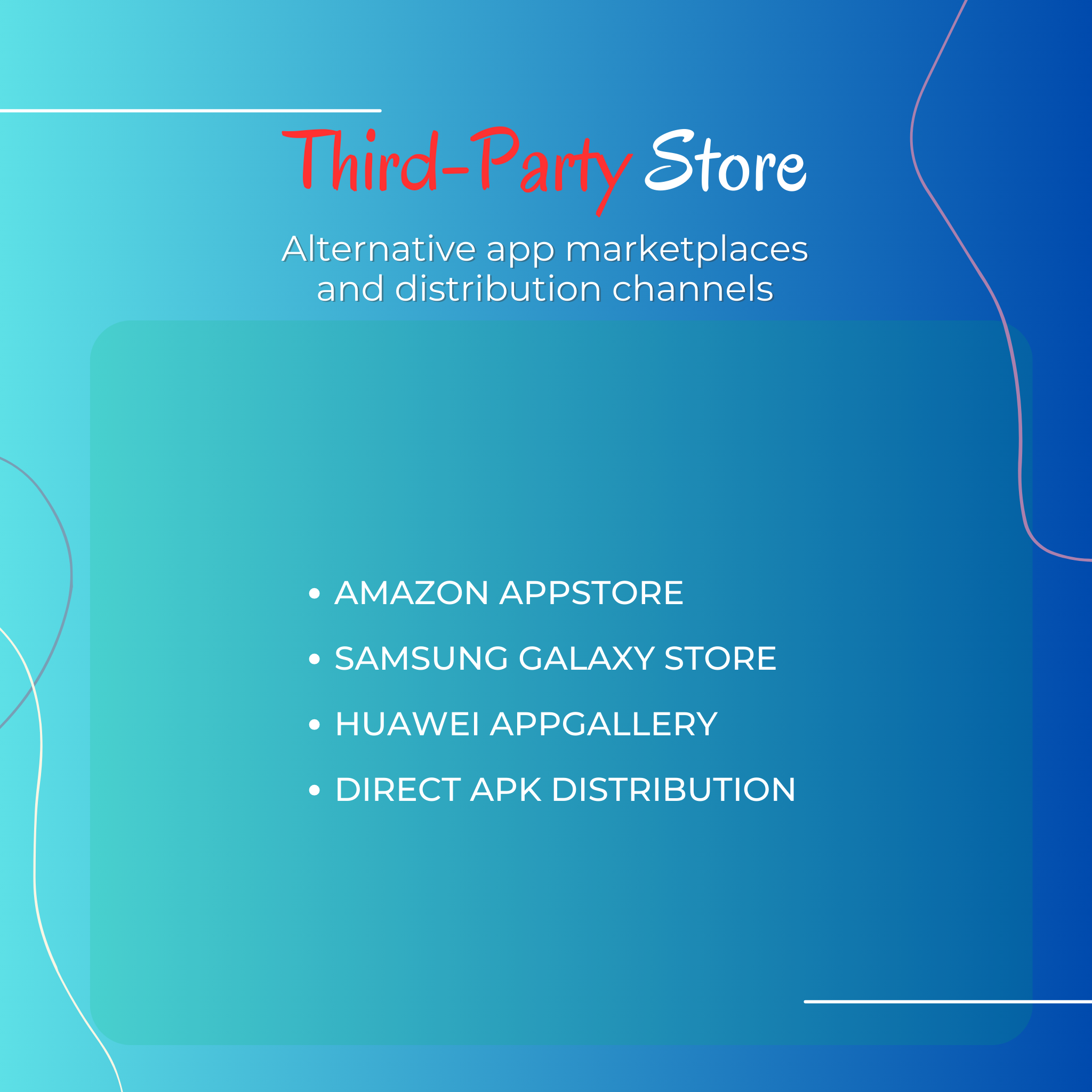
Publish to distribution channels.

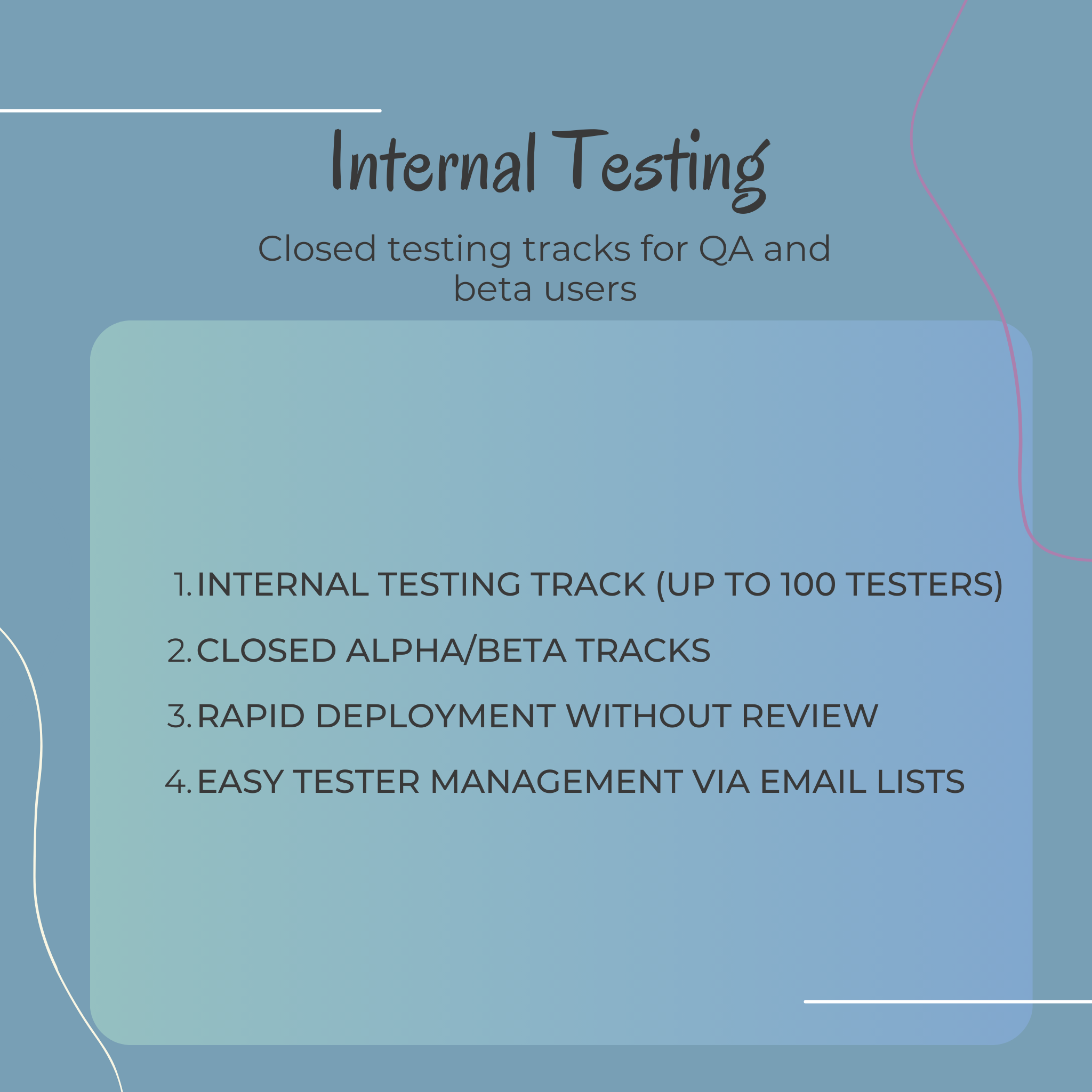
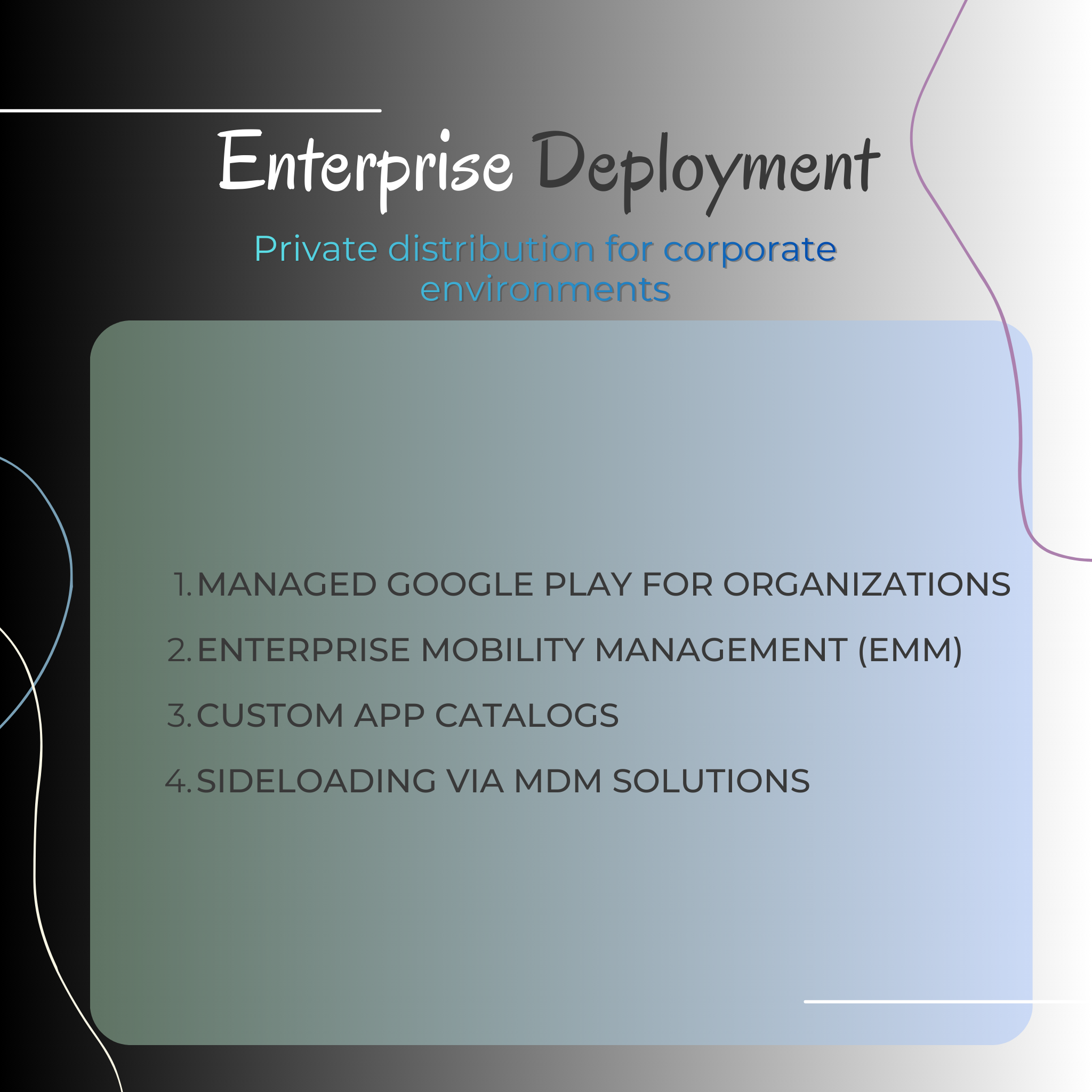
Upload to Google Play Console, internal testing tracks, or enterprise distribution platforms. Configure release notes and staged rollouts.

Track performance and crashes.

Use Play Console, Firebase Crashlytics, and analytics to monitor app health, user engagement, and identify issues in production.


Latest About Deployment

Publishing Formats

Understanding APK vs AAB: Choose the right format for your deployment strategy

Deployment Options

Choose the right distribution channel for your Android application.

Android App Bundle (AAB)

Modern publishing format optimized for Google Play Store

Recommend

Advantages

    Smaller download sizes with dynamic delivery
  • Automatic APK optimization for different devices
  • Required for new apps on Google Play
  • On-demand and instant delivery modules
  • Better user experience with smaller installs

Limitations

    Only works with Google Play Store
  • Requires Play App Signing
  • Cannot be installed directly on devices

Android Package (APK)

Traditional Android app package format

Advantages

    Universal compatibility with all Android devices
  • Can be distributed outside Google Play
  • Direct installation on devices
  • Useful for testing and enterprise deployment
  • Full control over distribution

Limitations

    Larger file sizes compared to AAB
  • Not preferred for Google Play publishing
  • Single APK may not fit all devices optimally
Signup & security Process

Secure your Android app with proper signing and keystore management

App Signing Process

1. Create Keystore

Generate signing key

2. Build & Sign

Sign your APK/AAB

3. Verify

Ensure authenticity

4. Distribute

Publish securely

App signing is a security mechanism that uses cryptographic keys to verify the authenticity of your Android application. Every Android app must be digitally signed with a certificate before it can be installed on a device or distributed through app stores. The signature ensures that updates come from the original developer and that the app has not been tampered with.

You can create a keystore in Android Studio by going to Build > Generate Signed Bundle/APK, then selecting "Create new" under the keystore path. Fill in the required information including keystore password, key alias, and key password. Store the keystore file and credentials securely - if you lose them, you cannot update your published app.

Debug signing uses an automatically generated debug keystore that Android Studio creates for development purposes. It expires after one year and should never be used for production. Release signing uses your production keystore with a longer validity period (25+ years recommended) and is required for publishing to Google Play and other distribution channels.

Best practices include:

  1. Never commit keystores to version control.
  2. Store keystores in secure, encrypted storage with multiple backups.
  3. Use environment variables or secure credential management for CI/CD pipelines.
  4. Limit access to keystore files and passwords.
  5. Consider using Google Play App Signing to let Google manage your keys securely.

Google Play App Signing is a service where Google securely manages and protects your app signing key. You upload an AAB signed with an upload key, and Google re-signs it with your app signing key before distributing to users. This provides additional security, the ability to reset your upload key if compromised, and enables advanced features like app bundles.

CI/CD Integration

Automate your Android build, test, and deployment workflows with modern CI/CD tools

CI/CD Integration

Popular

GitHub Actions

Native CI/CD for GitHub repositoriesNative CI/CD for GitHub repositories
    YAML-based workflows
  • Matrix builds
  • Secrets management
  • Free for public repos

Jenkins

Self-hosted automation server
    Extensive plugin ecosystem
  • Full customization
  • Distributed builds
  • On-premise deployment
Popular

Firebase App Distribution

Beta testing and distribution platform
    Instant tester notifications
  • Crash reporting integration
  • Release notes
  • Easy tester management

All Articles "Deployment"

Explore a complete library of articles dedicated to Android Studio publishing and deployment, covering everything from APK and AAB formats to app signing, Play Store releases, CI/CD pipelines, and enterprise distribution. Each article breaks down workflows, best practices, and common pitfalls to help you release apps securely, efficiently, and at scale. Whether you’re looking for step‑by‑step tutorials, optimization tips, or advanced deployment strategies, this section offers practical insights to guide your Android projects from build to launch.

VPN encrypting torrent traffic on laptop screen with secure global connection.
Read More
TikTok Shop global ecommerce trend 2025 visual with world shopping elements
Read More
Cloud IDE setup showing Android Studio coding across laptop, smartphone, tablet, and browser
Read More
Galaxy a36 5G
Read More

Optimization & Monitoring

Optimize app performance and monitor production health with industry-standard tools

proGuard

Code shrinking and obfuscation
    Legacy tool for reducing APK size by removing unused code and obfuscating class names. Useful for additional customization beyond R8.

R8

Modern code shrinker and optimizer
    Default compiler that shrinks, obfuscates, and optimizes your code. Integrated into Android Gradle Plugin 3.4.0+.

Play Console

App performance monitoring
    Track installs, crashes, ANRs, user engagement, and revenue metrics. Access detailed reports and user feedback.

Firebase Crashlytics

Real-time crash reporting
    Lightweight crash reporter that tracks, prioritizes, and fixes stability issues in real-time. Integrates with Android Studio.

What Our Users Are Saying

Join the community of Android developers who have transformed their workflow with our deployment solutions.
Rated 5 out of 5

“With Android Studio Hub, the app release process has never been smoother. Thanks to the clear guidelines and efficient tools, I was able to deploy my app confidently!”

wireframe img 1 e1708013680578

Jessica H.

Android Developer

Rated 5 out of 5

“The CI/CD integration saved me hours of work! I now spend less time on deployments and more on building awesome features.”

wireframe img 1 e1708013680578

Mark T.

Mobile App Manager

Rated 5 out of 5

“The insights provided by Android Studio Hub on app signing and deployment have been invaluable. Highly recommend!”

wireframe img 1 e1708013680578

Sarah L.

Lead Developer

Optimization Best Practices

Code Optimization
  • Enable R8 in release builds
  • Configure ProGuard rules carefully
  • Use resource shrinking to remove unused assets
  • Implement code splitting for large apps
  • Minimize method count and DEX size
Monitoring Strategy
  • Set up crash reporting before launch
  • Monitor ANR (App Not Responding) rates
  • Track app startup time and performance
  • Use staged rollouts to detect issues early
  • Implement custom logging for debugging

FAQ & Troubleshooting

Common publishing errors and their solutions

This error occurs when the keystore credentials are incorrect or the keystore file is corrupted. Solution:

  1. Verify your keystore password and key alias are correct
  2. Ensure the keystore file path is accurate in your build.gradle,
  3. Check that your keystore hasn't expired (use keytool -list -v -keystore yourkey.jks)
  4. If using Play App Signing, ensure you're using the upload key, not the app signing key.

Google Play requires each new upload to have a higher versionCode than previous releases. Solution:

  1. Open app/build.gradle and increment the versionCode value
  2. Consider using dynamic version codes based on build numbers in CI/CD
  3. Use semantic versioning for versionName for clarity
  4. Remember that versionCode is an integer and must always increase.

When using NDK or third-party libraries with native code, you must upload debug symbols for crash reporting. Solution:

  1. Enable NDK debug symbol generation in build.gradle
  2. Upload symbols via Play Console or use automated upload in CI/CD
  3. Ensure native libraries are properly mapped in your ProGuard rules
  4. Use Firebase Crashlytics NDK for better native crash reports.

Aggressive code shrinking can remove classes that are used via reflection or by third-party libraries. Solution: 

  1. Add keep rules in proguard-rules.pro for reflection-based code
  2. Include library-specific ProGuard rules from documentation
  3. Test release builds thoroughly before publishing
  4. Use @Keep annotations for critical classes
  5. Review R8 warnings during build.

Google Play has a 150MB limit for base AAB, with expansion files for larger apps. Solution:

  1. Enable resource shrinking and code obfuscation
  2. Use dynamic feature modules for large components
  3. Compress images and use WebP format
  4. Remove unused resources with lint checks
  5. Consider on-demand asset delivery for large media files.

Discover More On Android Studio

Explore more about Android Studio through our sub‑categories: Build & Gradle, Coding & Development, Debugging & Testing, Version Control, and Plugins & Tools. Each section offers practical guides, tips, and resources to help you streamline app development and optimize your workflow.